Cursor IDE Review 2026: The AI-First Code Editor
A detailed review of Cursor IDE in 2026. We cover its Composer mode, multi-file editing, pricing, and whether it justifies switching from VS Code.
1X2.TV — AI Football Predictions
AI-powered football match predictions, betting tips, and in-depth analysis. Powered by machine learning algorithms analyzing 50,000+ matches.
Get PredictionsCursor has gone from niche experiment to the editor of choice for a growing number of AI-forward developers. Built as a fork of VS Code with AI capabilities woven into every interaction, Cursor promises something that bolt-on extensions cannot deliver: an editor designed from the ground up around AI-assisted coding.
After using Cursor as our primary editor for a month across multiple production projects, here is our detailed assessment of whether it lives up to the hype in 2026.
What Is Cursor?
Cursor is a code editor built by Anysphere, a startup founded in 2022. It is a fork of Visual Studio Code, which means it supports VS Code extensions, themes, and keybindings out of the box. The difference is that Cursor adds a deep AI layer on top: multi-file editing, natural language code generation, intelligent chat, and an inline editing experience that goes well beyond what any VS Code extension can offer.
The editor supports multiple AI model backends including Claude, GPT-4o, and other models. You can choose which model to use for different tasks, and Cursor handles the integration seamlessly.
Pricing
| Plan | Price | What You Get |
|---|---|---|
| Free | $0 | 2,000 completions/month, 50 slow premium requests |
| Pro | $20/month | Unlimited completions, 500 fast premium requests/month |
| Business | $40/month per user | Team management, admin controls, centralized billing |
The free tier is enough to evaluate Cursor, but the 2,000 completion limit will run out quickly for active developers. The Pro plan at $20 per month is where most individual users land, and it provides a generous amount of usage for daily coding.
Compared to GitHub Copilot at $10 per month, Cursor is double the price. The question is whether the additional capabilities justify that premium.
Installation and Setup
Download Cursor from cursor.com, install it, and you can import your VS Code settings, extensions, and keybindings in one click. The migration is remarkably smooth. Your themes, snippets, and workspace configurations transfer without issue.
On first launch, Cursor indexes your project to build a codebase map. This indexing is what enables Cursor’s signature feature: understanding your entire project, not just the file you have open. For a medium-sized project (10,000 to 50,000 files), initial indexing takes a few minutes. After that, it updates incrementally as you edit.
You will need to sign in and optionally connect your preferred AI model provider. Cursor works with its built-in models, but you can also bring your own API keys for Claude, GPT-4o, or other providers.
Composer Mode: The Headline Feature
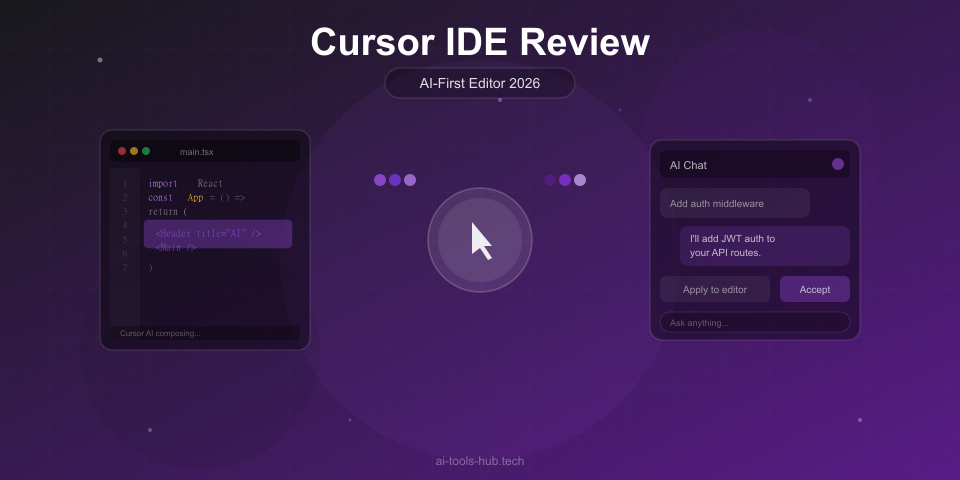
Composer is Cursor’s most distinctive capability and the primary reason developers switch from VS Code. It lets you describe a change in natural language, and Cursor applies edits across multiple files simultaneously.
For example, you might type: “Add a rate limiting middleware to the Express server that limits each IP to 100 requests per minute, add the necessary Redis configuration, and update the tests.” Composer will identify the relevant files, make the changes, and show you a diff for each modified file before you accept.
What makes Composer powerful:
- It understands your project structure and knows which files to modify
- Changes are presented as reviewable diffs, not blind replacements
- You can iterate on the changes through follow-up prompts
- It handles file creation, deletion, and modification in one operation
- The context window is large enough to work with substantial codebases
Where Composer falls short:
- Very large changes (touching 10+ files) can produce inconsistencies that require manual cleanup
- It occasionally modifies files that should not be touched
- Complex refactoring still benefits from being broken into smaller steps
- The speed depends on which backend model you are using
In practice, Composer handles 80 percent of multi-file changes correctly on the first try. For the remaining 20 percent, the diffs make it easy to spot and fix issues. This is still dramatically faster than making the same changes manually.
Inline Editing with Cmd+K
Press Cmd+K (or Ctrl+K on Windows and Linux) to open an inline editing prompt. Select some code, describe what you want to change, and Cursor modifies it in place. This is faster than opening a chat panel and more precise than waiting for inline completions.
Common uses include:
- “Convert this to async/await”
- “Add error handling for the database connection”
- “Refactor this into smaller functions”
- “Add TypeScript types to these parameters”
The inline edit experience is smooth and the results are usually correct for targeted changes. It is especially useful for repetitive transformations across a file — select a block, apply a change, then repeat on the next block.
Tab Completion
Cursor’s inline completions work similarly to GitHub Copilot. As you type, ghost text appears with suggested code. Press Tab to accept. The quality is competitive with Copilot, and in our testing, Cursor’s completions edged ahead when the suggestion required understanding code in other files.
The completion engine benefits from Cursor’s project indexing. When you are writing a function that calls another function defined in a different file, Cursor knows the correct signature and parameter types because it has indexed the entire project. This is a meaningful advantage over tools that only see the current file.
In our benchmarks, Cursor’s tab completion acceptance rate was 68 percent for Python and 65 percent for TypeScript, compared to Copilot’s 64 percent and 62 percent respectively. The difference is most noticeable in larger projects where cross-file context matters.
The .cursorrules File
Cursor lets you create a .cursorrules file in your project root that defines instructions the AI should follow. This is a simple but powerful feature for teams.
For example, you might include rules like:
- Always use the project’s custom logging library instead of console.log
- Follow the repository’s naming conventions for database models
- Prefer composition over inheritance
- Use specific error handling patterns defined by the team
The AI respects these rules across all interactions — Composer, inline edits, and chat. This means new team members get AI suggestions that already follow the project’s conventions, reducing code review friction.
Chat Sidebar
Cursor includes a chat panel similar to Copilot Chat. You can ask questions about your code, request explanations, or discuss implementation strategies. The chat is context-aware and can reference any file in your project.
The chat quality depends on which model you have selected. With Claude as the backend, the reasoning quality for complex architectural questions is excellent. With faster models, you get quicker but sometimes shallower responses.
One useful pattern is referencing specific files in your chat with the @ symbol. Type @filename to include a file’s contents in the context. This lets you ask questions like “How does @auth.ts handle token refresh, and should I follow the same pattern for @payments.ts?”
Performance and Stability
Since Cursor is a VS Code fork, performance is generally comparable. Extensions load the same way, the file explorer works identically, and the integrated terminal is unchanged.
However, there are some differences:
- Indexing overhead: The initial project index uses CPU and memory. On very large monorepos (100k+ files), this can take several minutes and consume a few gigabytes of RAM.
- Extension compatibility: Most VS Code extensions work perfectly, but we encountered occasional issues with a few extensions that relied on VS Code internals. The main culprits were some specialized debugging extensions and a few niche language servers.
- Update cadence: Cursor tracks upstream VS Code releases but is typically a few weeks behind. This means you occasionally miss the latest VS Code features while waiting for Cursor to merge them.
- Startup time: Slightly slower than vanilla VS Code due to the AI initialization, but we are talking about one to two extra seconds, not a significant delay.
Overall, stability has improved significantly compared to early versions of Cursor. We experienced no crashes during our month of testing, though we did see occasional lag during heavy Composer operations.
Who Is Cursor Best For?
Ideal users:
- Developers who spend significant time on multi-file refactoring and feature implementation
- Teams working on medium to large codebases where cross-file context matters
- Developers already using VS Code who want deeper AI integration without learning a completely new editor
- Solo developers and small teams who want the most capable AI editing experience available
Not ideal for:
- Developers locked into JetBrains IDEs by team or organizational requirements
- Large enterprises that need extensive admin controls (the Business plan is newer and less mature than Copilot Enterprise)
- Developers who primarily need simple inline completions and do not use multi-file editing often
- Teams with strict requirements about which tools can access their code
Cursor vs GitHub Copilot
This is the comparison most developers want to make. Here is how they stack up:
| Feature | Cursor Pro ($20/mo) | Copilot Individual ($10/mo) |
|---|---|---|
| Inline completions | Excellent | Excellent |
| Multi-file editing | Composer mode (best in class) | Limited |
| Chat quality | Depends on model (Claude is excellent) | Good (GPT-4o based) |
| IDE lock-in | Must use Cursor editor | Works in VS Code, JetBrains, Neovim |
| Project context | Full codebase indexing | Workspace indexing (good, not as deep) |
| Custom rules | .cursorrules file | Limited |
| Price | $20/month | $10/month |
If you primarily write code in VS Code and value multi-file editing, Cursor is the better tool. If you need JetBrains support, want to spend less, or prefer a tool that works inside your existing editor without switching, Copilot is the safer choice.
Many developers, including our team, use both: Cursor for active development and complex changes, and Copilot when working in other editors or on quick fixes.
Pros and Cons Summary
Pros:
- Composer mode is the best multi-file AI editing experience available
- Cmd+K inline editing is fast and precise
- Full codebase indexing provides superior context awareness
- Supports multiple AI model backends
- VS Code compatibility means easy migration and familiar interface
- The .cursorrules file enables team-specific AI behavior
Cons:
- Requires switching editors, which is a dealbreaker for some teams
- $20 per month is double the cost of GitHub Copilot
- Extension compatibility is not 100 percent
- Large monorepo indexing can be resource-intensive
- Slightly behind VS Code on upstream updates
- Business plan features are less mature than Copilot Enterprise
The Verdict
Cursor is the best AI-first code editor available in 2026, and it delivers the most capable multi-file editing experience we have tested. Composer mode alone justifies the switch for developers who regularly work across multiple files, and the codebase indexing provides context awareness that bolt-on extensions cannot match.
The trade-off is clear: you pay more ($20 versus $10 per month), you must switch editors, and you accept a slightly less stable extension ecosystem. For developers who spend their days in VS Code working on medium-to-large projects, that trade-off is worth it.
If you just need solid inline completions and chat in your existing IDE, GitHub Copilot at half the price is the more practical choice. But if you want the cutting edge of AI-assisted development, Cursor is where that edge lives.
Our Rating: 9.5 out of 10
For a full comparison of all AI coding tools, see our guide to the best AI coding assistants in 2026.
This article contains affiliate links. If you purchase through our links, we may earn a commission at no extra cost to you. See our affiliate disclaimer for details.
AI Stock Predictions — Smart Market Analysis
AI-powered stock market forecasts and technical analysis. Get daily predictions for stocks, ETFs, and crypto with confidence scores and risk metrics.
See Today's PredictionsAI Tools Hub Team
Expert AI Tool Reviewers
Our team of AI enthusiasts and technology experts tests and reviews hundreds of AI tools to help you find the perfect solution for your needs. We provide honest, in-depth analysis based on real-world usage.